Your Zoho CRM Has AI Built In — Have You Switched It On?
Most Zoho CRM Users Are Sitting on AI They've Never Switched On
If you're on Zoho CRM Enterprise, Ultimate, or Zoho One, you've already got access to Zoho's built-in AI assistant — Zia. Most teams barely touch it.
That's not a criticism. Zia's features are spread across different parts of the CRM, and unless you go looking, you won't stumble across most of them in day-to-day use. Also many are using the well-known LLM tools such as ChatGPT or Claude(one of my favourites coupled with ZOHO Mcp server.) But once it's set up properly, it can save your team real time and give you a clearer picture of your pipeline without adding extra admin.
This article walks you through what Zia does, why it's probably worth your attention, and how a structured 7-day approach can get Zoho CRM's ZIA AI working in your business without turning everything upside down. Its a good starting point to use AI you may already have!

What Is Zia, and What Can Zoho CRM AI Actually Do?
Zia is Zoho's built-in AI layer. It sits across your CRM data and learns from how your team uses the system — who you contact, when deals move, which emails get replies, and how leads tend to behave before they convert or go cold.
It's not magic, and it won't fix bad data or processes. But when your CRM is reasonably clean and your team is using it consistently, Zia can start doing useful things.
Lead and Deal Scoring
Zia looks at historical patterns and assigns scores to your leads and deals based on how similar ones have behaved in the past. Instead of guessing which leads to prioritise, your team gets a data-backed rank — built from your own CRM history, not generic benchmarks.
Email Intelligence
Zia analyses your sent and received emails and suggests the best time to contact each lead, based on when they've historically opened or replied. It can also flag the sentiment of incoming emails — positive, negative, or neutral — so your team knows the mood before they pick up the phone.
AI for Calls
Zia can transcribe call recordings into text and extract sentiment, intent, and a summary from each conversation. For sales teams making a high volume of calls, this removes the need to take detailed notes during a call and makes it much easier to review what was said and agreed without listening back to recordings.
Ask Zia
Ask Zia is a conversational interface inside your CRM. You can type questions like "show me deals closing this month" or "how many leads came in last week" and get an answer without building a report. It's particularly useful for managers who need quick pipeline visibility and for team members who find report-building slow.
Zia Signals
Zia Signals are notifications that fire when something relevant changes: a lead visits your website, a contact opens an email, or a deal has been sitting in the same stage for too long. They help your team act at the right moment rather than missing it.
Anomaly Detection
Zia monitors your sales metrics and flags when something looks unusual — a drop in calls made, a spike in deals lost, a change in conversion rates. It won't tell you why, but it will tell you that something has shifted, which gives you the chance to investigate before it becomes a bigger problem.
Smart Prompts and AI-Assisted Setup
Inside any CRM record, Zia's Smart Prompts give you a Record Assistant — a summary of your full conversation history with that contact, recent activity, and current status, without clicking through multiple tabs. You can also use it to draft personalised emails from the record directly. Beyond day-to-day use, Zia can create modules, workflows, and reports from plain-English descriptions, which cuts down the time spent in setup screens considerably.
None of this requires you to build anything from scratch. Zia uses the data you're already collecting in Zoho CRM.
There's also a newer layer worth knowing about: Zia Agents — autonomous AI agents that can execute tasks across your CRM without manual prompting. These sit beyond the scope of this article, but if you've got the basics running well and want to go further, agents are the natural next step.
Get my The ZIA MOT to get started
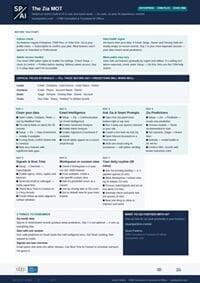
If you want a quick reference to work from, I've put together a free one-page 7-Day Zoho CRM AI Checklist — The ZIA MOT, every step from Day 1 to Day 7 on a single printable page, with checkboxes. Fill in the form below and I'll send it straight to your inbox.
Why Don't More Zoho Users Actually Use Zia?
A few themes come up repeatedly when I talk to Zoho CRM users.
They Didn't Know It Was There
Zia features are spread across different parts of the CRM — Email Intelligence, Predictions, Ask Zia, Signals, and so on. Unless you go looking, you won't stumble across most of it in day-to-day use.
Their Data Wasn't Ready
Zia learns from patterns in your data. If your lead stages are inconsistent, contacts are missing key fields, or your team hasn't been logging activity regularly, there isn't much for Zia to work with. It will technically turn on — it just won't do much.
They Turned It On but Nothing Seemed to Happen
Some Zia features take time to generate meaningful predictions — they need enough historical data to spot patterns. People switch it on, see nothing immediately, and assume it doesn't work. In most cases, it just needed a few more weeks and cleaner data.
Nobody "Owns" It Internally
Zia sits somewhere between sales, operations, and IT. In many small teams, that means nobody feels responsible for turning it on, tuning it, and making sure people actually use it.
All of these are solvable. That's what the 7-day approach is designed to address
The 7-Day Approach to Getting Zoho CRM AI Working
This isn't about rushing through. It's a structured week that builds in the right order — each day's work sets up the next — so by the end you've got Zia switched on, you know how to use it, and the whole thing fits into how you already work.
The same structure can be applied to other CRM platforms — HubSpot, Pipedrive, NetSuite — but as a Zoho Authorised Partner of 10 years + its where most of the businesses I work with start.
Day 1 — Data Health Check
Zia won't give you useful predictions from messy data.Before anything else, you review your current records: missing fields, duplicate contacts, inconsistent lead stages, incomplete deals. A few hours here saves a lot of frustration later, and it often improves the CRM generally, not just for Zia.
Day 2 — Email Intelligence
Connect your email and turn on Zia's email analysis. Start seeing sentiment flags and best-time-to-contact suggestions for your key contacts. This is often the feature that gets the most immediate positive response from sales teams — it's visible and immediately useful.
Day 3 — Ask Zia
Set up and test the conversational query tool. Work out which questions your team asks most often and make sure Zia can answer them. This gets people comfortable talking to the system rather than just clicking through menus — a shift that tends to stick.
Day 4 — Predictions and Scoring
Review your historical data,configure Zia Predictions for leads or deals, and make sure your stages and fields are set up in a way that gives Zia something useful to work with. This is where the data work from Day 1 pays off.
Day 5 — Zia Signals and Notifications
Configure which signals matter for your business. Not every notification is relevant — the goal is useful alerts, not noise. Set up the ones that match how your team actually works.
Day 6 — Use Workqueue or Custom Views and Focus Lists
Build views that help you or your team make best use of Zia. Your team shouldn't have to go looking for AI insights — they should see them as part of their normal daily view of their specific pipeline or work area.
Day 7 — Develop a Daily Routine and Review with AI
Pull everything together into a simple daily habit:check Ask Zia for a quick briefing, work the priority list, process signals, review the week. Make sure your team knows what to do and feels confident doing it.
What You'll Have at the End of the Week
By the end of the week, you will have Zia switched on and connected to your data in a way that starts to work with your business.
The aim is:
- A cleaner, more consistent CRM that Zia can learn from and help you with your daily crm use.
- Email intelligence, Signals, and predictions feeding into one or two daily views instead of being buried in settings menus.
- A working setup with a daily routine that uses it without adding too much in extra admin or cost!
Try and end up with a daily CRM check that takes 10 to 15 minutes instead of an hour of clicking around and exporting spreadsheets.
Now I know this won't transform your business overnight, but its a good start to use AI that may already be included in the Zoho CRM subscription you pay for. It can help form part of wider plans for automating or improving areas of your business operations. But it will give you a more informed view of your pipeline, save your team time on manual checks, and start surfacing the kind of patterns that are easy to miss when you're moving quickly.
Want Zoho ZIA AI To Be Done With You?
The checklist above is so you can work through this yourself. But if you'd rather have someone alongside you who knows Zoho CRM inside out, then sign-up for my Zoho 7 Day AI Setup Sprint is a supported 7 day assisted setup guide where we work through the 7 Day ZIA playbook together — in your CRM, with your data.
By the end you'll have:
- Zia switched on and properly configured for your team's roles.
- A daily routine that fits how you already work, not a new process on top of everything else.
- Someone to ask when something doesn't look right.